
Part I · Chapter 05
Navigating the 3D Viewport
Toolbar controls
| Control | What it does |
|---|---|
| Zoom In / Zoom Out | Moves the camera closer or farther. |
| Fit | Frames the whole setup. |
| Move | Switches to Move mode, where a right-click drag pans the camera. |
| Undo / Redo | Steps back and forward through your edits. |
The scroll wheel zooms in the viewport at any time.
Mouse buttons
- Normal mode: right-click drag rotates the camera; middle-click drag pans.
- Move mode: right-click drag pans; middle-click drag rotates.
- Ctrl + right-click drag pans without leaving normal mode.
A plain right-click without dragging opens the canvas menu.
The View gizmo
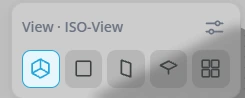
The View panel in the top-left corner of the viewport switches between preset views. Its settings icon opens two modes:
- XYZ: the presets Isometric, Orthographic XY, Orthographic YZ, Orthographic XZ and 4 panes, plus X, Y and Z fields for the camera position. Type a value, use the arrow keys or the small step buttons.
- θφ: the same views as Front view, Right view, Top view, Isometric and 4 panes, with the camera set by two angles instead of coordinates.
Measure
Measure in the toolbar measures the distance between two points you pick.
Display and visibility

- Link Lines draws a dashed line from each part to the coordinate system it is positioned against.
- Visibility, under More, shows or hides categories of parts, such as optomechanics.
- View → Scene options sets the grid and the breadboard.
- Ray Colors is described in Running a Simulation.


