Part II · Chapter 14
Simulation Tools
What a run does
RUN in Propagation Simulation mode traces the setup with the PhotonCore engine on the cloud's GPUs. Every ray is refracted and split into reflected and transmitted rays at each surface it meets, with the Fresnel coefficients for that surface, until its intensity drops below the threshold. The result fills the viewport and the analyses.
Fast Rays (Beta) traces far fewer rays for quick feedback while you work. Pair it with Interactive mode.
Gaussian Beam
The Gaussian Beam tool in the toolbar (also Beam parameters measurement in the right-click canvas menu) measures the waist, divergence and other parameters of a beam from the traced rays:
- Have at least one Gaussian light source in the setup and run a Propagation Simulation.
- Open the tool and pick a ray in the viewport.
For a reliable measurement, raise the source's 3D Layout ray count in its settings first.
Quick Focus
Quick Focus scans along the optical axis for the position with the smallest RMS spot and reports it.
Polarization Analyzer
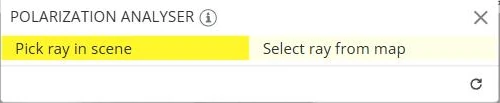
The Polarization Analyzer plots the polarization state (the Jones components Jx and Jy) along one ray. Pick the ray in the scene or from a map.
Coherence Manager
Tools → Coherence manager lists the light sources with a group number each. Sources with the same number are treated as mutually coherent and can interfere; sources with different numbers are independent. The per Coherence Group filter in an analysis result uses these groups.
The Tools menu
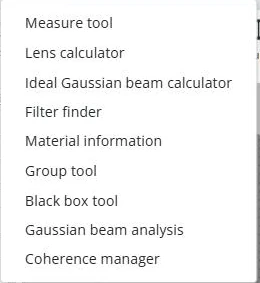
| Tool | What it does |
|---|---|
| Measure tool | Measures the distance between two picked points. |
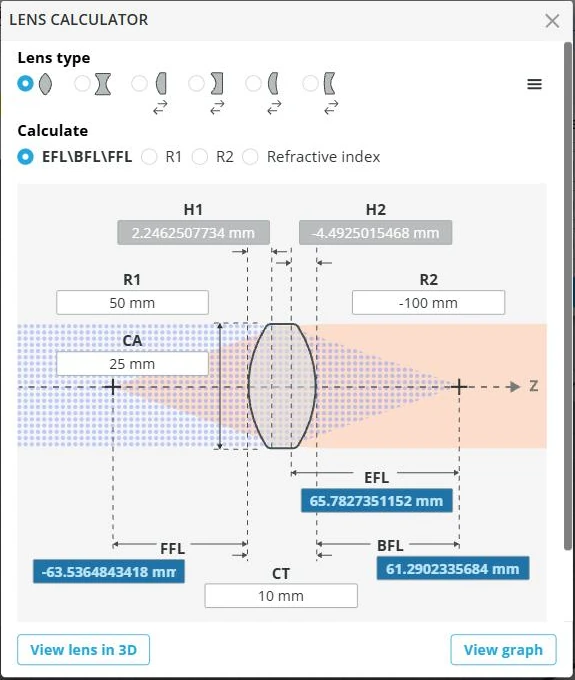
| Lens calculator | Computes the focal lengths of a lens from its radii, thickness and refractive index, or a radius from a target focal length, with a 3D preview. |
| Ideal Gaussian beam calculator | Computes the propagation of an ideal Gaussian beam. |
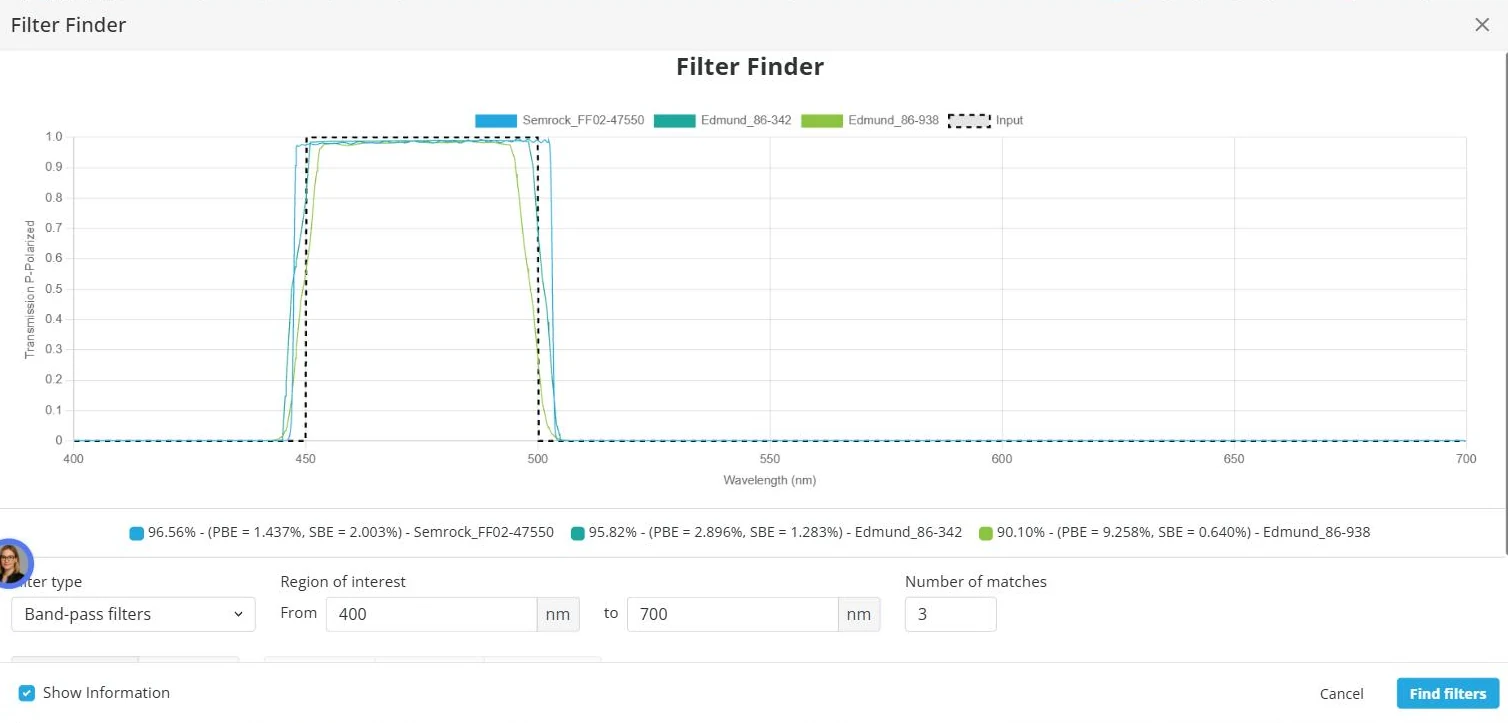
| Filter finder | Finds catalog filters by wavelength: cut-off, center wavelength and bandwidth. |
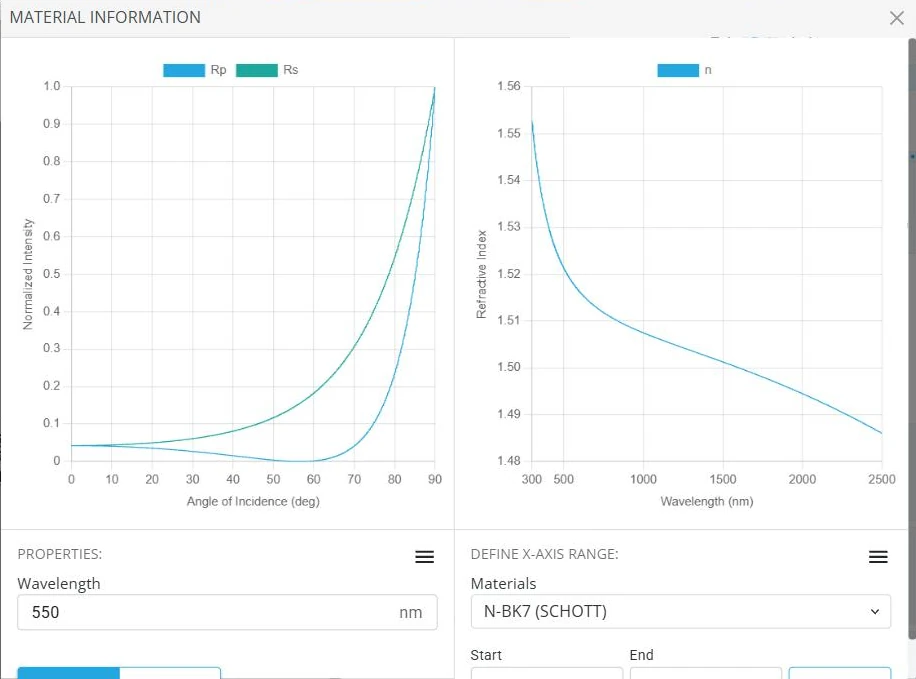
| Material information | Shows reflectance against angle and refractive index against wavelength for any catalog material. |
| Group tool | Groups parts. |
| Black box tool | Replaces a group with a single barrel. |
| Gaussian beam analysis | A table-based Gaussian beam analysis. |
| Coherence manager | Groups light sources into coherence groups. |