
Part II · Chapter 16
Account Settings, Units & Permissions
Open your account menu at the top right and choose User settings. The dialog has these tabs:
| Tab | What it holds |
|---|---|
| Personal info | Name, phone, company and professional area. |
| Design & Simulation Tool | Ray display and simulation settings, in a Global and a Setup related version. |
| General settings | Camera behavior, scene appearance and your resource usage. |
| View settings | Wavelength units, light units and the number of decimals shown. |
| License | Your plan, the days left on a trial, and the activation and expiry dates. |
| Billing | Payment and subscription management. |
| API | Your API key, ready to copy. |
Global and setup-related settings
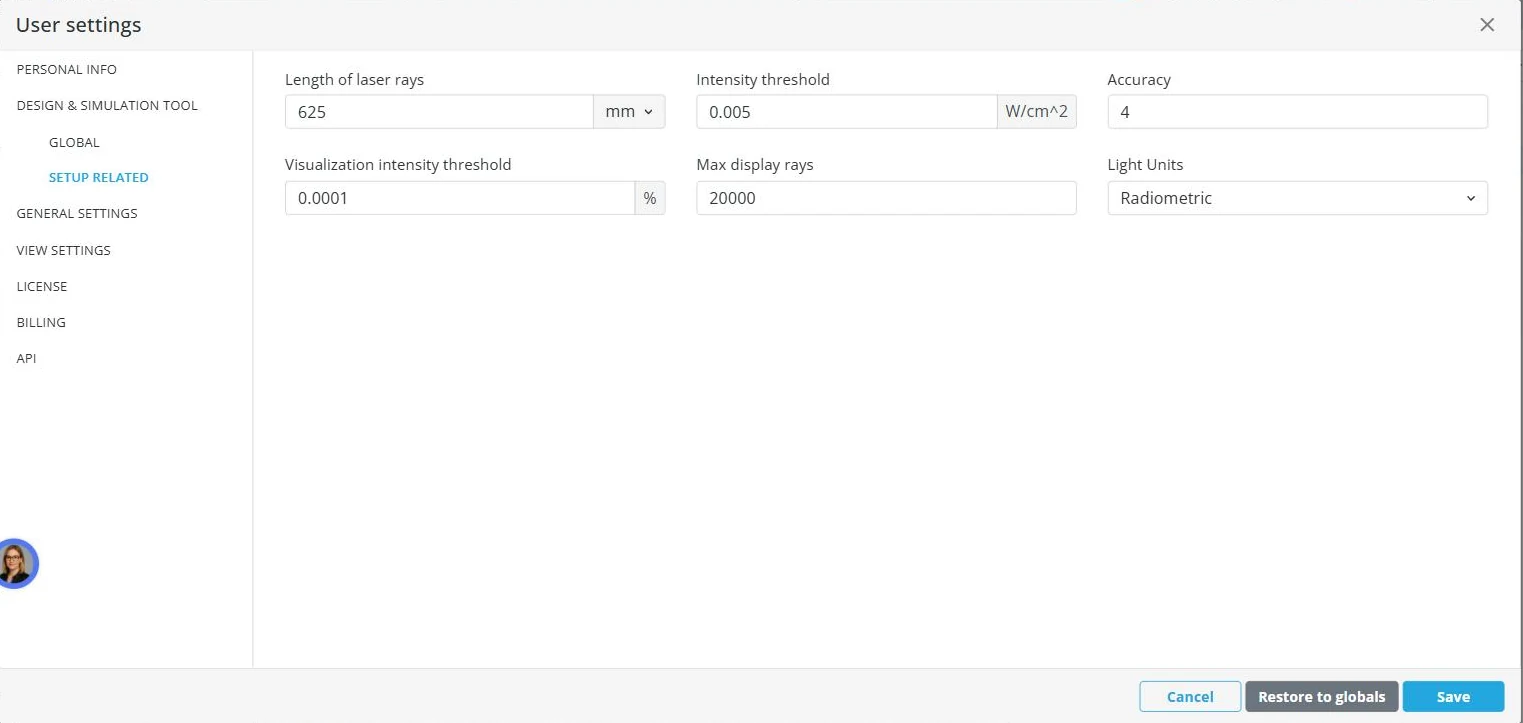
The Design & Simulation Tool settings exist twice. Global values apply to every new setup. Setup related values apply only to the setup that is open and override the global ones. Restore to globals removes the overrides.
The settings are: length of laser rays, intensity threshold, visualization intensity threshold, max display rays, intensity colors count, amplitude threshold, accuracy and light units.
Units
View settings holds the wavelength units, the light units and the accuracy, that is the number of decimals shown in the tool.
Camera and scene
General settings holds the camera mode (free orbit or fixed scene), the scene background color and the frame rate.
Resource usage
General settings also shows your account's CAD storage limit with the amount used, and your GPU time limit with the amount used.
CAD part permissions
An uploaded CAD part has its own permission, separate from the setup's privacy. A private part is visible only in your account; a shared part can be found and used by other users like a catalog part. If a colleague cannot find a part you uploaded, check its permission.
Academic licenses
An academic license has one owner and several seats. The owner's settings include a sub-owner section and a sub-users section for managing the seats.


