
Part II · Chapter 10
CAD Import
Choose File → Import CAD, or Upload CAD Part in the Optomechanics category of the catalog, to import a mechanical part. Accepted formats are .stp and .step.
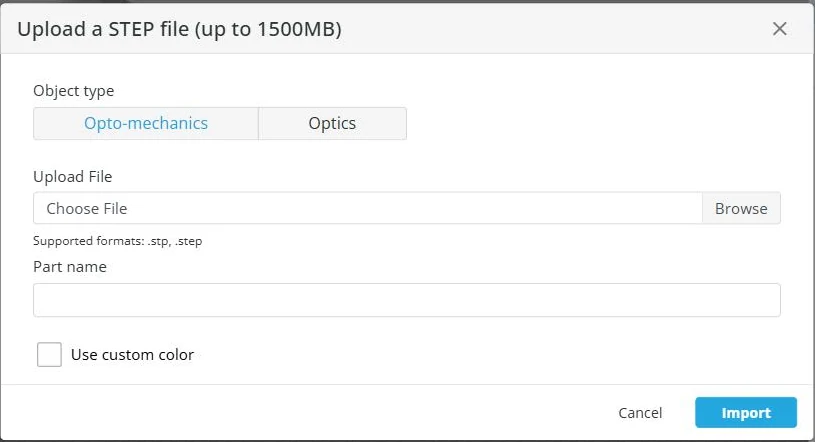
In the dialog, choose whether the part is Opto-mechanics or Optics, pick the file, name the part and, if you like, give it a color.
Limits
| Plan | CAD storage | Single file size limit |
|---|---|---|
| Student / trial | 5 MB | 5 MB |
| Academic | 1500 MB | 1500 MB |
| Enterprise | 1500 MB | 1500 MB |
An account with a custom limit uses that limit instead. The Import CAD item in the File menu and the dialog title both show your account's limit and how much of it is used.
Imported geometry is simplified to at most 500 faces. A resolution setting in the dialog controls the detail within that limit.
After import
A CAD part behaves like any other optomechanics part: you can place it, move it and position it against a coordinate system. It has no optical properties.
Whether other users can find and reuse your CAD part is set by its own permission, described in Account Settings.


